Verify the Official Signal Download Source Before Proceeding
The first step in any software installation is confirming the authenticity of the source. For Signal, the only verified official website is signal.org. Users searching for 'install signal' may encounter third-party app stores, mirror sites, or bundled software packages that are not maintained by the Signal Foundation. These unofficial sources can pose security risks, including modified code or embedded trackers, which contradict Signal’s core value proposition of privacy and security.
Before clicking any download button, check the browser address bar to ensure the domain is exactly signal.org and that the connection is secured via HTTPS. The official download page explicitly lists options for Android, iPhone and iPad, Windows, macOS, and Linux. If a site claims to offer a 'cracked' version, a standalone desktop installer without mobile linking, or an older version not listed on the official page, do not proceed. The Signal app is free to use, has no ads or trackers, and is operated as an independent nonprofit, so there is no financial incentive to seek unofficial versions.
- Confirm the URL is https://signal.org/ before downloading.
- Ensure the page lists all five major platforms: Android, iOS, Windows, macOS, and Linux.
- Avoid any installer that requests unnecessary permissions or bundles additional software.
Check Device Compatibility and OS Requirements
Signal supports a wide range of devices, but performance and security updates depend on running a supported operating system version. Before starting the installation, verify that your device meets the minimum OS requirements. While specific version numbers change over time, generally, Signal requires relatively recent versions of Android and iOS to support end-to-end encryption protocols and modern security features. On desktop, Windows, macOS, and Linux users should ensure their systems are updated to receive the latest security patches.
Additionally, check for sufficient storage space. While the initial app size is small, Signal stores media files such as photos, videos, and voice messages locally unless auto-download settings are adjusted. Ensure you have adequate network access for the initial download and subsequent synchronization of chat history. Installation will fail or behave unpredictably on unsupported or outdated OS versions, potentially leaving gaps in security coverage.
- Verify your OS version is current and supported by Signal.
- Ensure sufficient storage for the app and potential media cache.
- Confirm stable internet access for initial setup and sync.
Prepare Phone Number and Registration Details
A common misconception is that Signal can be used anonymously without any personal identifier. In reality, Signal registration requires a valid phone number capable of receiving SMS or voice calls for verification. This phone number serves as your unique identifier during the initial setup process. While Signal has introduced usernames to enhance privacy, allowing users to start conversations without sharing their phone number, the phone number remains a mandatory requirement for account creation.
Before installing, ensure you have access to the phone number you intend to register. If you are using a secondary number or a VoIP service, verify that it can receive verification codes. Note that once registered, you can adjust privacy settings to control who sees your phone number. However, you cannot bypass the initial registration step. Users without a verifiable phone number cannot complete Signal registration, so alternative messaging apps may need to be considered if this is a strict constraint.
- Have a phone number ready that can receive SMS or voice calls.
- Understand that usernames are optional for conversations but not for registration.
- Plan your privacy settings regarding phone number visibility post-registration.
Install Signal on Mobile Devices (Android and iOS)
For mobile users, the safest installation path is through the official app stores linked directly from signal.org/download/. On Android, this directs you to the Google Play Store, and on iPhone and iPad, it directs you to the Apple App Store. Using these official channels ensures that the app signature matches the developer’s certificate, providing an additional layer of security against tampered binaries. Avoid sideloading APKs from unknown websites, as these bypass store security checks.
After installation, open the app and follow the on-screen prompts to verify your phone number. During this process, Signal may request permissions for contacts, camera, microphone, and notifications. Granting these permissions is necessary for core functionality, such as making encrypted calls and sending media. Verify that the app publisher listed in the store matches 'Signal Messenger LLC' or the official Signal Foundation entity to confirm authenticity.
- Use the official store links provided on signal.org/download/.
- Verify the app publisher name in the store listing.
- Grant necessary permissions for calls, media, and notifications during setup.

Install and Link Signal Desktop on Windows, macOS, or Linux
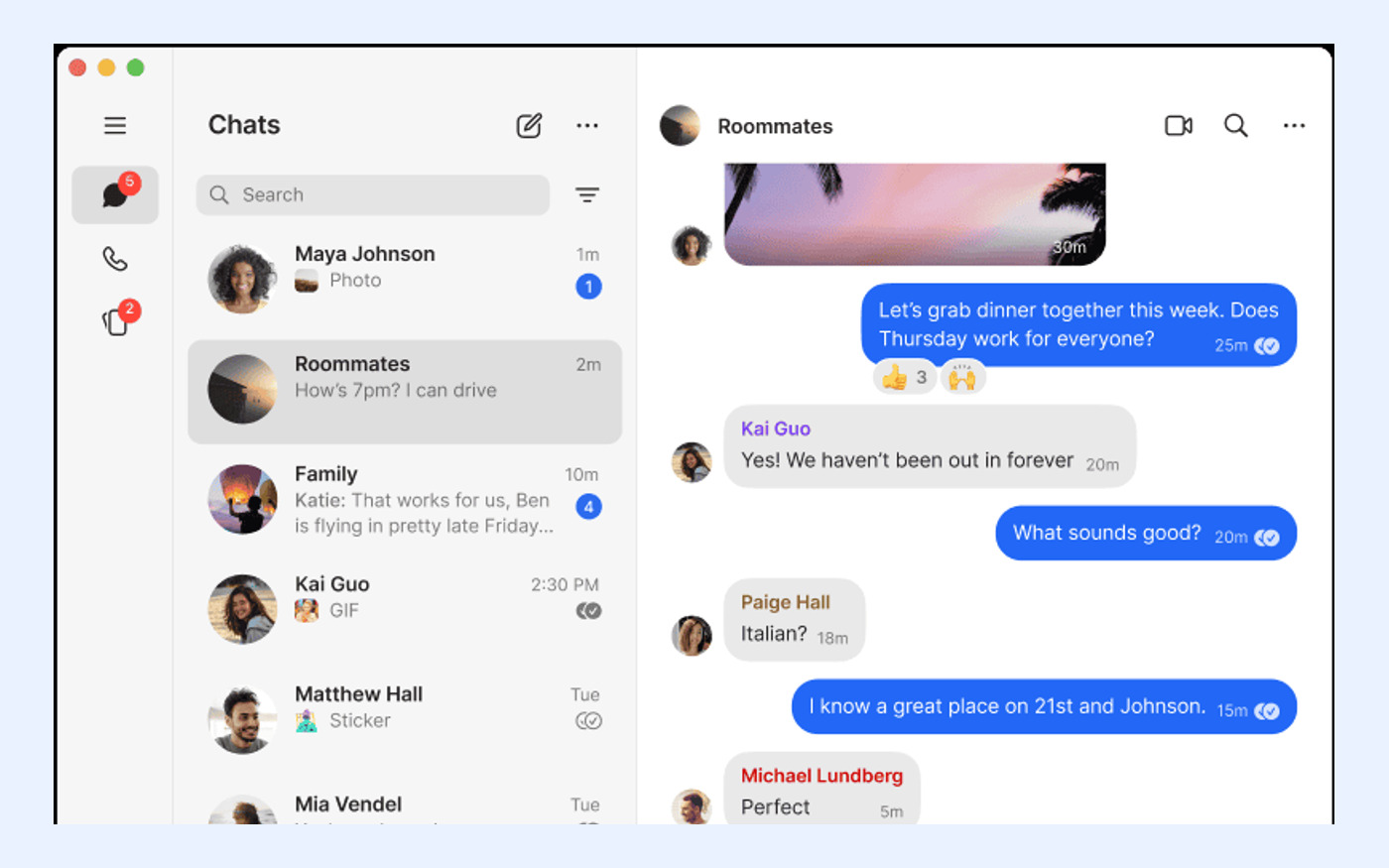
Signal Desktop is designed as a companion application, not a standalone service. This means you cannot register a new account directly on your computer. Instead, you must first have Signal installed and active on an Android or iOS phone. Once the mobile app is set up, download the desktop client from signal.org/download/ for your respective operating system. The installation process is straightforward, but the critical step is linking the devices.
Open Signal Desktop and scan the QR code displayed on the screen using your mobile Signal app. Navigate to Settings > Linked Devices on your phone and select 'Link New Device'. This establishes a secure, encrypted connection between your phone and computer. Note that Signal Desktop relies on your phone for certain cryptographic operations, although recent updates have improved independence. If you do not have a mobile device, you cannot use Signal Desktop.
- Ensure Signal is already registered on a mobile device.
- Download the desktop client from the official Signal website.
- Use the 'Linked Devices' feature in the mobile app to scan the desktop QR code.
Verify Linked Devices and Initial Sync Status
After linking your desktop or tablet, it is important to verify that the synchronization process completed successfully. Signal allows a single phone account to have up to five linked devices. When linking a new device for the first time, Signal synchronizes your chat history and the last 45 days of media. This ensures that you can access recent conversations across all your devices without manual transfer.
Check your mobile app’s 'Linked Devices' settings to confirm that the new device appears in the list. If a device is missing or shows an error, try unlinking and relinking it. Be aware that exceeding the five-device limit will require you to remove an existing device before adding a new one. Proper verification ensures that you do not miss messages or media files due to sync errors.
- Confirm the new device appears in the 'Linked Devices' list on your phone.
- Check that recent chats and media (last 45 days) are visible on the new device.
- Ensure you do not exceed the five-device limit per account.
Evaluate Optional Secure Backups and Recovery Keys
Signal offers an optional feature called Secure Backups, which allows you to back up your message history to the cloud in an end-to-end encrypted format. Unlike traditional backups, Signal cannot access this data. Instead, it is protected by a 64-character recovery key that you must save securely. If you lose this key, Signal cannot recover your backup, and your message history will be lost if you switch devices or reinstall the app.
Users should carefully consider whether to enable this feature. While it provides convenience, the responsibility for key management lies entirely with the user. Additionally, Signal currently lists an optional paid media-storage plan at US$1.99 per month for users who need more space for backed-up media. If you choose not to use Secure Backups, your message history remains local to your device, and you must manage transfers manually when switching phones.
- Understand that the 64-character recovery key is essential for restoring backups.
- Recognize that Signal cannot recover lost keys or backup data.
- Consider the optional US$1.99/month plan if additional media storage is needed.
Perform Post-Install Privacy and Security Checks
Once installed, take time to review Signal’s privacy settings to align them with your preferences. Signal provides end-to-end encrypted messages and calls by default, ensuring that only you and the recipient can read or listen to communications. However, other settings, such as read receipts, typing indicators, and profile visibility, can be customized. Review these options in the Privacy settings menu to minimize data exposure.
Additionally, configure your username if you wish to share it instead of your phone number with new contacts. This adds a layer of anonymity while maintaining the security of the underlying phone-number-based account. Regularly update the app to ensure you have the latest security patches and features. By performing these checks, you ensure that your installation of Signal is not only functional but also optimized for your specific privacy needs.
- Verify that end-to-end encryption is active for all chats and calls.
- Adjust privacy settings for read receipts, typing indicators, and profile visibility.
- Set up a username to reduce reliance on sharing your phone number.