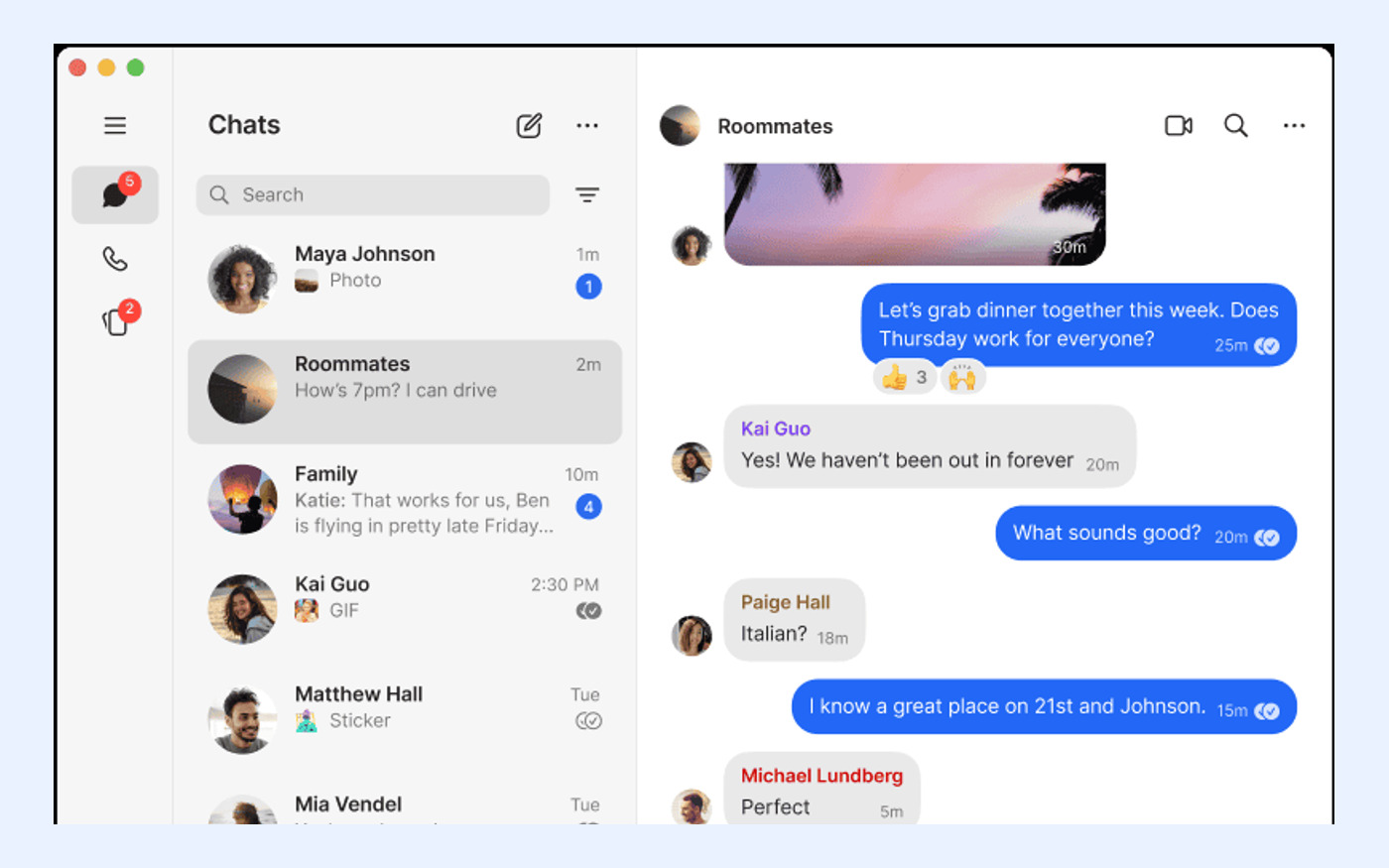
Confirm whether your phone and computer meet the official linking requirements
Before attempting to link Signal Desktop, you must verify that your primary device meets the fundamental architectural requirement of the Signal network. Signal Desktop is not a standalone application; it functions as a companion client that mirrors an existing mobile account. Therefore, the first critical check is to ensure you have an active Signal account registered on a smartphone running either Android or iOS. If you do not have a functioning Signal account on a mobile device, you cannot proceed with the desktop setup, as there is no mechanism to register a new account directly from a computer.
Next, evaluate your computer's operating system against the officially supported platforms. Signal provides native desktop applications for Windows, macOS, and Linux. If your computer runs a different operating system or an unsupported version of these systems, the official client will not function correctly. This step prevents wasted time downloading incompatible software. Ensure your computer can install standard applications and has a stable internet connection, as the initial linking process requires real-time communication between the mobile app and the desktop client to establish encrypted keys.
- Verify the phone runs a supported Signal mobile app on Android or iOS and is signed into an active Signal account.
- Verify the computer runs a supported desktop OS: Windows, macOS, or Linux, and can install the official Signal Desktop client.
Verify the official Signal download source before installing
Security begins with the source of your software. To link Signal Desktop safely, you must obtain the installer exclusively from the official Signal website. Navigate to signal.org/download/ and confirm that the connection is secure (HTTPS). This ensures that the software you are downloading has not been tampered with by third parties. Avoid downloading Signal Desktop from third-party app stores, file-sharing websites, or unofficial mirrors, as these sources may distribute modified versions of the software that compromise end-to-end encryption or introduce malware.
Once on the official download page, select the installer that matches your computer's operating system. The site typically detects your OS automatically, but it is prudent to double-check that you are downloading the correct version for Windows, macOS, or Linux. After downloading, verify the file integrity if your operating system provides tools to do so, though relying on the official HTTPS source is the primary defense. Installing from any source other than signal.org is out of scope for a secure setup and should be rejected immediately to maintain the integrity of your private messaging environment.
- Check that the download page URL is exactly signal.org/download/ and the connection is HTTPS.
- Confirm the installer matches the official desktop OS listed for the current computer (Windows, macOS, or Linux).
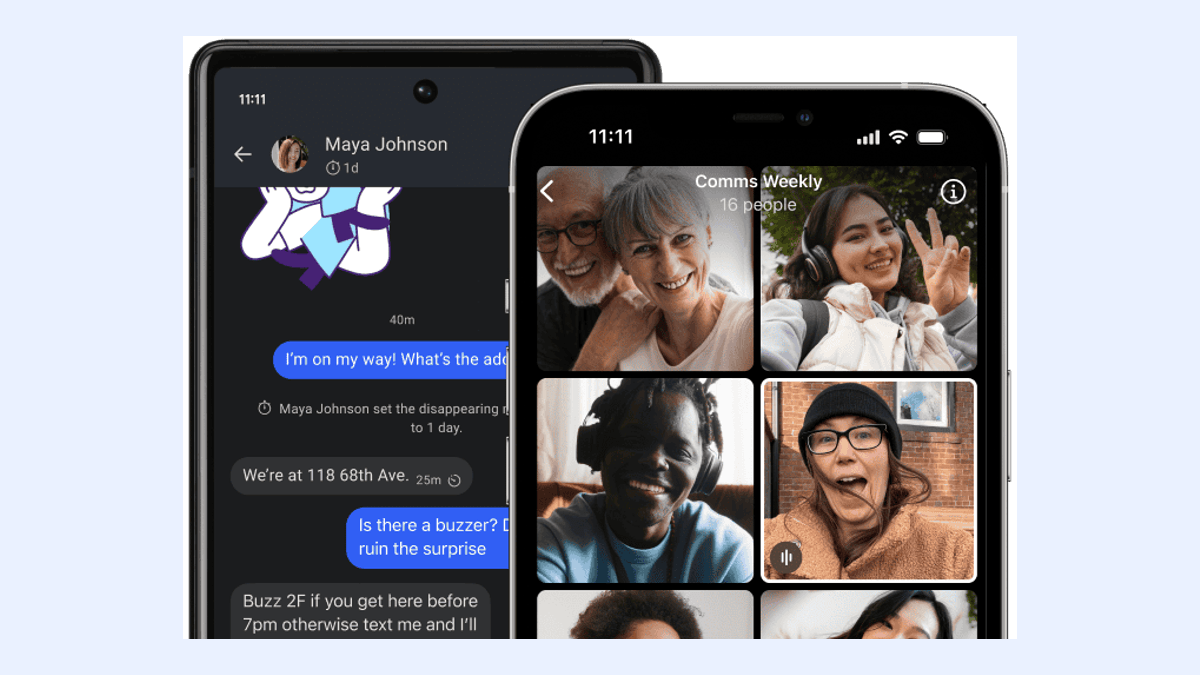
Prepare the Signal mobile account for linking a new desktop device
With the desktop client installed, attention shifts to the mobile device, which acts as the authority for your account. Before initiating the link, ensure your Signal mobile app is updated to the latest version available in your app store. Older versions may lack the necessary protocols to communicate securely with the current desktop client, leading to pairing failures. Send a test message to a trusted contact to confirm that your mobile account is active, registered, and capable of sending and receiving data without errors.
Additionally, check your current linked device count. Signal allows a single phone number to have up to five linked devices simultaneously. If you have already reached this limit with other computers, tablets, or secondary devices, you must unlink an existing device before adding the new desktop client. Attempting to link a sixth device will result in an error. This step ensures that the linking process proceeds smoothly without requiring troubleshooting for capacity issues. If your account is locked or unregistered, resolve these status issues on the phone first.
- Confirm the phone can send and receive a test message and that the Signal app is updated to the current version.
- Confirm the account has not already reached the maximum of five linked devices.
Complete the desktop linking flow using the official QR or pairing steps
The linking process establishes a secure, encrypted channel between your phone and your computer. Open the newly installed Signal Desktop application. It will display a QR code or a pairing instruction. On your mobile device, open Signal, go to Settings, and select 'Linked Devices.' Tap 'Link New Device' and use your phone's camera to scan the QR code displayed on the computer screen. If scanning is not possible, some versions allow for manual entry of a pairing code, though scanning is the standard and most reliable method.
During this process, keep both devices awake and connected to a stable network. The phone must approve the link, and the desktop client must receive the encryption keys. Do not close the Signal app on your phone or disconnect from the internet until the synchronization process is complete. Skipping the mobile approval step or interrupting the connection can leave the desktop client in an unlinked or partially synced state, requiring you to restart the process. Once linked, the desktop client will begin syncing your message history.
- Open Signal Desktop and follow the on-screen prompt to scan the QR code or enter the pairing code from the mobile app.
- Keep both devices on a stable network connection until the initial sync finishes.

Check what chat history and media sync to the newly linked desktop
Understanding the scope of data synchronization is crucial for setting realistic expectations. When you first link Signal Desktop, the application synchronizes your recent chat history. However, it does not download your entire lifetime of messages and media by default. Specifically, the initial sync includes messages and media from the last 45 days. This design choice balances security, storage efficiency, and performance, ensuring that the desktop client remains lightweight and responsive.
If you need access to media or messages older than 45 days, they will not appear automatically on the desktop. You must access these older records on your primary mobile device. Alternatively, if you have enabled Signal Secure Backups, you may be able to restore older media, but this is a separate process from the initial desktop link. Readers expecting full historical media availability on the desktop immediately after linking will be disappointed; this is a hard product boundary defined by Signal's architecture. Plan your workflow accordingly, keeping your phone accessible for older reference materials.
- Confirm that recent chats synchronize and that up to the last 45 days of media are available on the desktop after first link.
- Verify that older media or attachments not within the sync window must be accessed from the phone or restored from backup.
Compare Signal Desktop linking with other private messaging desktop setups
For software evaluators, it is helpful to contextualize Signal's linking model against competitors like WhatsApp, Telegram, Threema, SimpleX Chat, Session, and Element/Matrix. Signal, like WhatsApp, relies on a primary mobile identity. This means your desktop experience is tethered to your phone's connectivity and account status. In contrast, some competitors offer desktop-first or independent desktop accounts that do not require a linked mobile device. If your workflow demands a completely independent desktop identity without phone dependency, Signal may not be the optimal choice.
Consider the linked-device limit and sync window as decision criteria. Signal's limit of five linked devices and the 45-day media sync window are specific constraints. Competitors may offer different limits or cloud-based history access that persists indefinitely on desktop. Evaluate whether Signal's emphasis on local device security and limited server-side retention aligns with your privacy requirements. If you need long-term, desktop-only access to full message history without a phone, you should consider alternatives rather than forcing Signal Desktop into a workflow it was not designed to support.
- Compare the requirement of a primary mobile account against desktop-only or multi-device-first models used by competitors.
- Compare the linked-device limit and sync window against the reader's need for long-term desktop-only access.
Review privacy and account boundaries specific to linked desktop use
Linking a desktop device does not alter the fundamental privacy model of Signal. End-to-end encryption remains active for all messages and calls on the linked desktop, meaning only you and your contacts can read the content. However, it is important to clarify the role of your phone number. While Signal offers optional usernames that allow you to start conversations without sharing your phone number, a valid phone number is still required to register and maintain the account. Linking a desktop does not remove this requirement.
Furthermore, the security of your desktop session is tied to the security of your phone. If your phone is compromised, your linked desktop sessions may also be at risk. Conversely, securing your desktop with strong operating system passwords and disk encryption adds a layer of protection for your messages when you are away from your phone. Understand that while usernames enhance privacy during interaction, the underlying account infrastructure still relies on phone-number verification. Do not assume that linking a desktop anonymizes your account further than the mobile app already does.
- Confirm that end-to-end encryption for messages and calls remains active on the linked desktop.
- Confirm that a phone number is still required for registration even if optional usernames are used for conversations.
Run a post-link checklist and decide the next safe step
After completing the link, perform a validation checklist to ensure the setup is healthy. Send a text message from the desktop to a contact and verify that it sends and receives correctly. Place a test voice or video call to confirm that audio and video drivers are properly configured on the desktop. Open a recent attachment, such as a photo or PDF, to ensure that file handling works as expected. These simple tests confirm that the encryption keys are synchronized and the network connection is stable.
If any step fails, do not immediately uninstall and reinstall. Instead, consult the official Signal FAQ and troubleshooting resources. Common issues often relate to network firewalls, outdated mobile apps, or temporary sync delays. Repeatedly unlinking and relinking devices without diagnosing the root cause can disrupt the sync window and waste time. If the desktop client continues to malfunction, refer to the official support channels for guidance specific to your operating system and device configuration.
- Send and receive a test message, place a test call, and confirm attachments open correctly on the desktop.
- If any step fails, consult the official Signal FAQ and troubleshooting path before reinstalling or unlinking devices.