Verify the Official Signal Source and Current Version
Before initiating any download, confirm that you are accessing the official Signal website. The only verified domain for downloading Signal apps is signal.org. Third-party sites, app stores not associated with your device’s native ecosystem, or mirror sites may host modified versions that compromise security. Always check the browser address bar to ensure the domain is exactly signal.org.
Once on the official site, locate the download section relevant to your operating system. Signal provides official apps for Android, iPhone and iPad, Windows, macOS, and Linux. Verify that the version number listed matches the latest release notes if available. This step ensures you are installing the most recent security patches and feature updates. Do not proceed if the site design looks unfamiliar or if you are redirected to an unrelated domain.
- Confirm the URL is 来源资料 before clicking any download links.
- Check that the platform selected (Android, iOS, Windows, macOS, Linux) matches your device.
- Avoid installing APKs or executables from unofficial forums or email attachments.
Assess Device and System Requirements for Installation
Signal supports a wide range of platforms, but each has specific system requirements. For mobile devices, ensure your Android or iOS version is up to date enough to support the current Signal app. Older operating systems may no longer receive security updates or app compatibility. Check your device’s storage space to ensure there is sufficient room for the app and initial media synchronization.
For desktop users on Windows, macOS, or Linux, verify that your OS version is supported. Signal Desktop is designed to work in conjunction with a mobile device, so ensure your computer meets the minimum hardware requirements for smooth performance. A stable internet connection is also critical during the initial installation and linking process to prevent timeouts or incomplete data transfers.
- Update your mobile OS to the latest stable version supported by your hardware.
- Ensure at least several hundred megabytes of free storage for initial setup.
- Verify network stability to support the initial handshake and data sync.
Prepare Phone Number and Optional Username Settings
Registration for Signal requires a valid phone number capable of receiving SMS or voice calls for verification. This number serves as your unique identifier during the initial setup. Before starting, ensure you have access to this phone and that it can receive international codes if necessary. While the phone number is mandatory for registration, Signal offers an optional username feature.
Usernames allow you to start conversations without sharing your phone number with new contacts. You can create a username after registration in the privacy settings. This adds a layer of privacy, as you can share your username instead of your number. However, remember that the phone number remains tied to your account for recovery and verification purposes. Plan how you will manage these two identifiers based on your privacy needs.
- Have a phone with an active SIM card ready to receive the verification code.
- Decide whether to create a username immediately after registration to enhance privacy.
- Understand that the phone number is still required for account recovery and initial login.
Plan Desktop and Mobile Linking Strategy
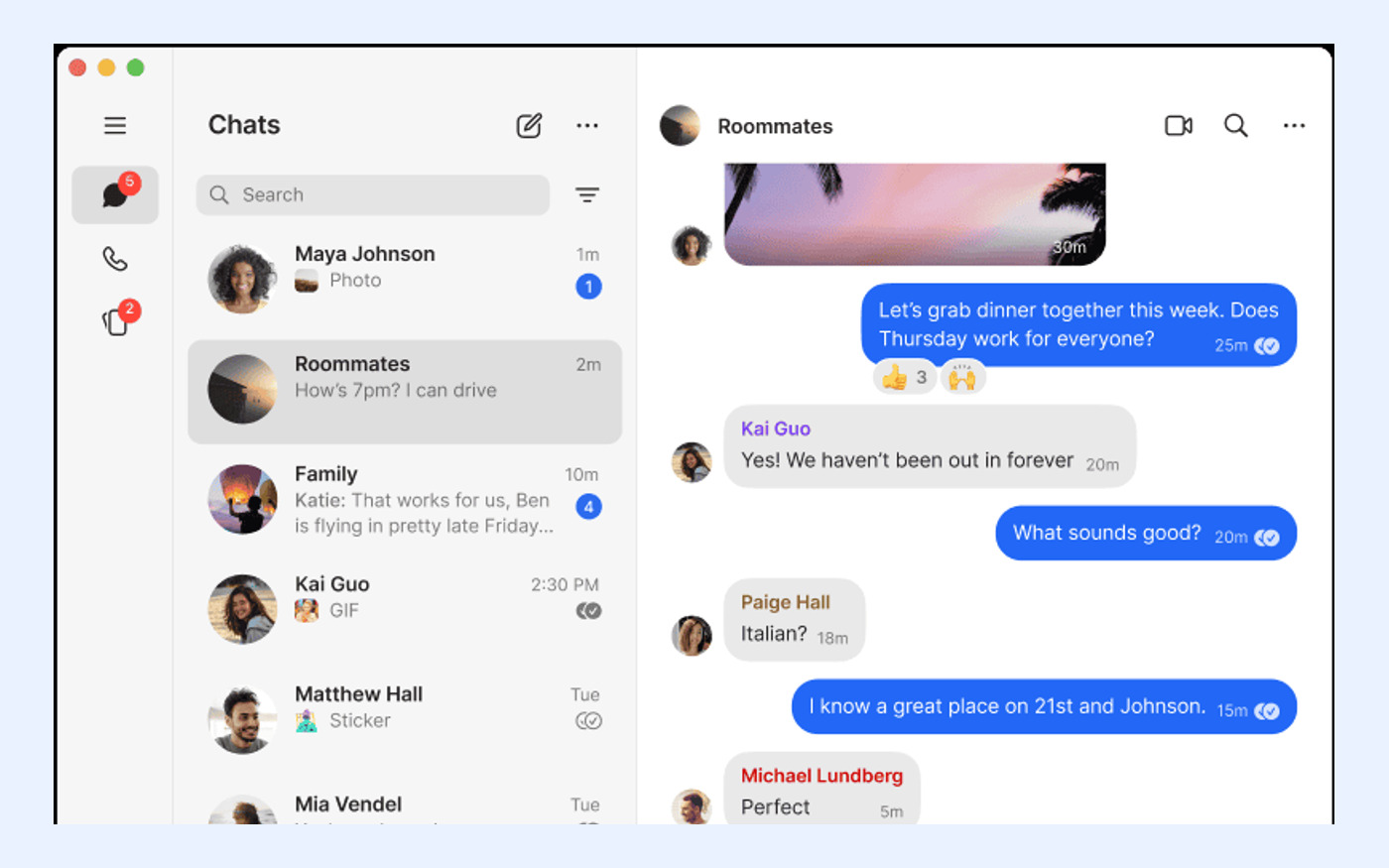
Signal Desktop applications for Windows, macOS, and Linux do not support standalone registration. They must be linked to an existing Signal account on an Android or iOS phone. This means you must install and register Signal on your mobile device first. Once the mobile app is active, you can use the 'Linked Devices' feature to connect your desktop client.
During the first-time linking process, Signal can synchronize your existing chat history and media. This ensures continuity across devices. Be prepared to keep both devices online and unlocked during this process. If you plan to use Signal primarily on a desktop, ensure your phone remains accessible for periodic re-verification or secondary authentication steps.
- Install Signal on your Android or iOS phone before attempting desktop setup.
- Use the 'Linked Devices' menu in the mobile app to scan the desktop QR code.
- Keep both devices connected to the internet during the initial synchronization.

Check Multi-Device Limits and Sync Scope
A single Signal phone number can support up to five linked devices simultaneously. This includes desktop computers, tablets, or additional phones. Managing these links is crucial for security. Regularly review the list of linked devices in your mobile app settings to ensure no unauthorized devices have access to your account. If you lose a device, unlink it immediately to prevent access.
When linking a new device for the first time, Signal synchronizes your chat history and the last 45 days of media. Older media may not be automatically synced to the new device unless it was previously backed up or stored locally. Understand this limitation to manage expectations regarding historical data availability on new installations. This sync scope helps balance performance with data completeness.
- Limit linked devices to five per account; remove unused devices regularly.
- Expect synchronization of chats and the last 45 days of media on new links.
- Monitor linked devices in settings to detect and remove unauthorized access.
Evaluate Optional End-to-End Encrypted Backups
Signal offers an optional feature called Secure Backups, which allows you to store your message history in the cloud. These backups are end-to-end encrypted, meaning Signal cannot read your messages or access your backup key. To enable this, you must generate a 64-character recovery key. This key is the only way to restore your backup; Signal does not store it and cannot recover it if lost.
There is also an optional paid media-storage plan for Secure Backups, currently listed at US$1.99 per month. This plan allows for larger media files to be included in the backup. Decide if this cost is justified by your need for comprehensive history preservation. If you choose not to use Secure Backups, ensure you understand that uninstalling the app without a local backup will result in permanent data loss.
- Generate and securely store the 64-character recovery key for Secure Backups.
- Recognize that Signal cannot recover your backup if the key is lost.
- Consider the optional US$1.99/month plan if extensive media backup is needed.
Configure Privacy and Account Security Settings
After installation, immediately review your privacy settings. Signal allows you to control who can see your phone number, profile photo, and last seen status. By default, some information may be visible to everyone. Adjust these settings to 'Nobody' or 'My Contacts' based on your comfort level. This minimizes the exposure of your personal information to unknown callers or spammers.
Additionally, enable screen lock features if available on your device. This adds a biometric or PIN requirement to open the app, protecting your messages if your device is physically accessed by others. Combine this with the username feature to further reduce the need to share your phone number. These steps collectively enhance your operational security while using the platform.
- Set phone number visibility to 'Nobody' or 'My Contacts' in privacy settings.
- Enable screen lock or biometric authentication for app access.
- Review and adjust profile photo and last seen visibility preferences.
Validate Core Functions After Installation
Once setup is complete, perform basic functional tests to ensure everything works correctly. Send a test message to a trusted contact and verify that it shows as delivered and read. Check that end-to-end encryption indicators are present, confirming the security of the channel. This simple check validates that your registration and network connection are functioning as intended.
Test voice and video calls with a contact to ensure audio and video streams are clear. Also, try sending a file or photo to confirm media upload and download capabilities. If any of these functions fail, revisit your network settings or reinstall the app. Early validation helps identify configuration issues before they impact critical communications.
- Send a test message to verify delivery and encryption status.
- Make a test voice or video call to check audio/video quality.
- Upload and download a file to confirm media handling works correctly.